
1. Write the direction in one sentence
Choose a working direction from the moodboard and express it clearly. For example: a compact coastal workshop with exposed timber and warm late-afternoon light. Put that sentence beside the chosen references.
Move alternatives into a separate area. Keep a short explanation of why you chose the current direction so later reviewers can understand the decision without reconstructing the whole discussion.
2. Identify decisions and dependencies
Add notes for the decisions still needed: roof profile, entrance scale and material contrast. Use shapes and arrows when one decision depends on another. Establishing the main silhouette may need to happen before you choose the amount of surface detail.
The brainstorm mind-map starter can help explore the remaining questions. Replace its prompts with your own and keep one branch for evidence, one for constraints and one for tests.
3. Give the next actions a clear finish
Write three actions with observable outcomes. Replace work on lighting with capture two lighting studies from the same camera. Replace improve the roof with compare two roof silhouettes against the approved reference.
- Write the action and the result you expect to see.
- Add an owner when more than one person is involved.
- Record a review point and what evidence to bring.
- Mark the action complete only after checking that result.
4. Prepare the review
Arrange the chosen references, current work and open decisions into a readable area. Save the editable board and export a PNG for people who only need the review image. Keep the native board for making changes afterwards.
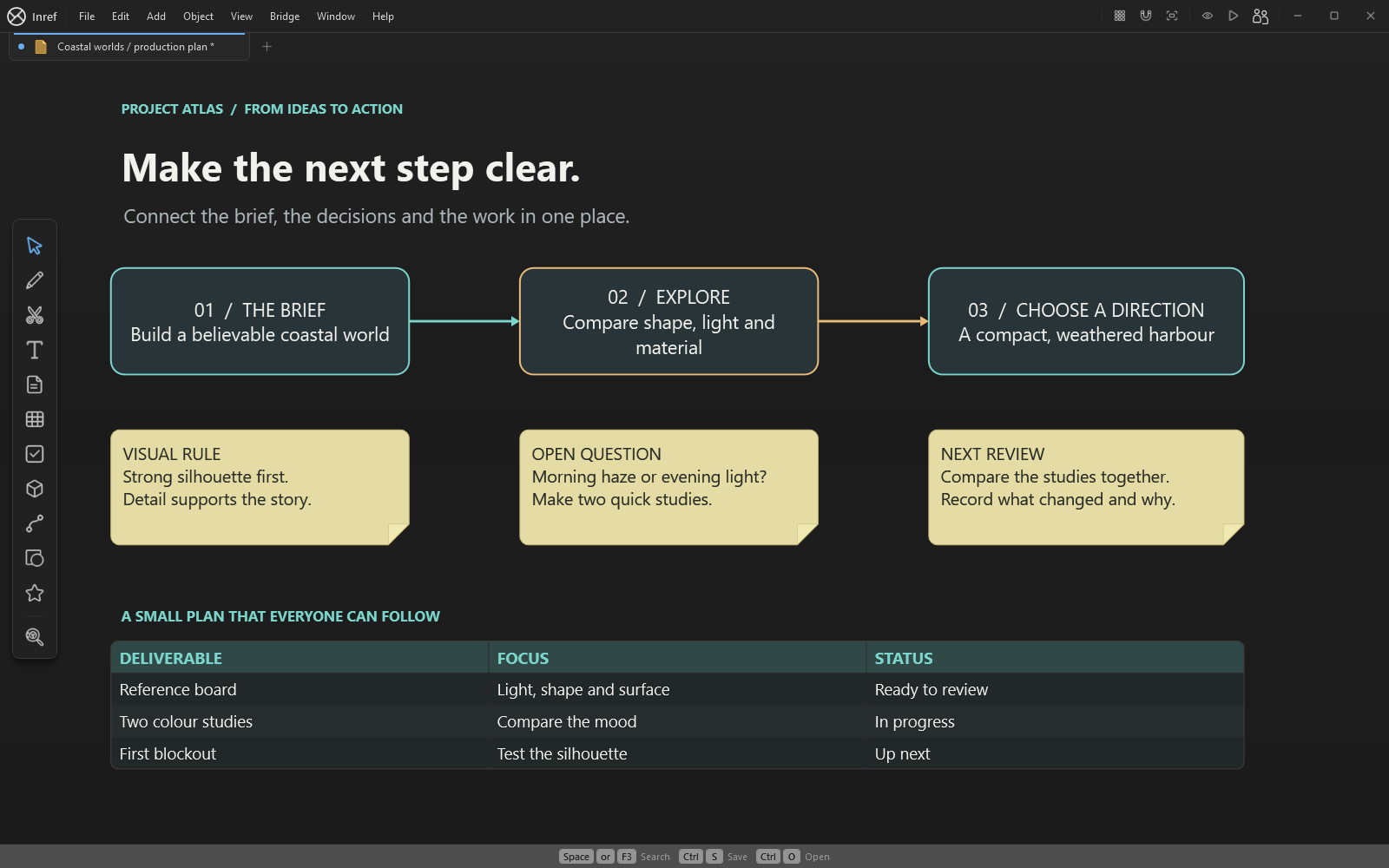
The project-kickoff and brainstorm templates contain editable shapes, connectors and a table. Table editing is included in Inref. You can also carry out this exercise with images, notes and shapes.
See the tools in use
Silent app demonstration. The written workflow above explains the steps.