
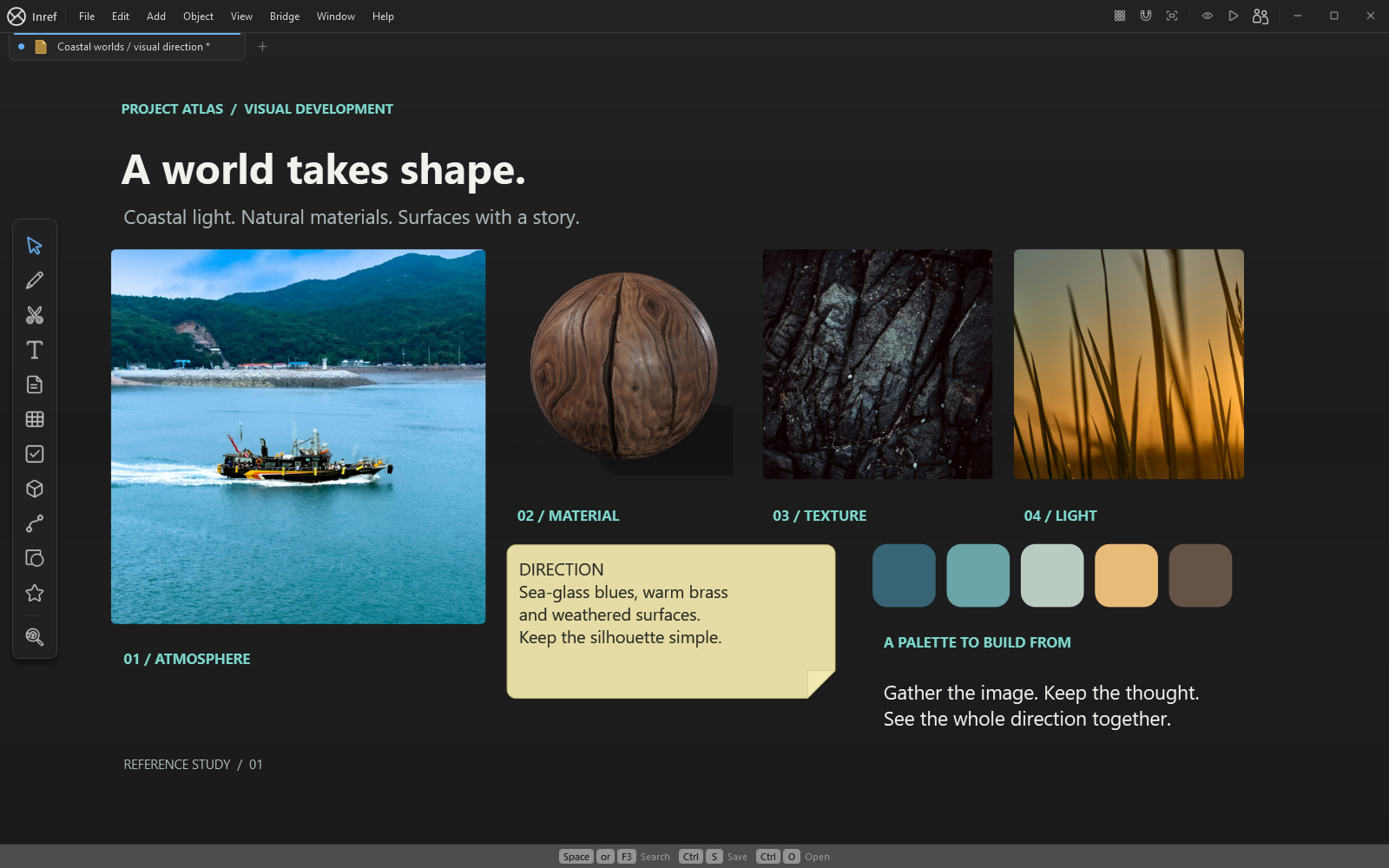
1. Prepare the reference board
Create a group for the current modelling task and place only the references you need for that pass inside it. Label perspective images clearly if their dimensions are uncertain. Keep a note describing the intended viewing angle and scale.
Arrange InRef beside Blender or put the board on a second monitor. If you prefer Reference Overlay, read its controls first: Ctrl+Shift+F11 returns from the click-through overlay, and Alt+Tab can help bring InRef back into focus.
2. Bring in a viewport capture
Capture the Blender view you want to review and paste or drag the resulting image into InRef. Keep the camera angle consistent across iterations. Comparing two different views can make a proportion change look more significant than it is.
- Place the capture next to the silhouette references.
- Compare the major masses and the spaces between them.
- Add notes for a maximum of three changes in this pass.
- Save the board before returning to Blender.
3. Check the next pass
Bring in a second capture after making those changes. Label the images by pass and keep the notes attached visually to the capture they describe. Compare the result against the brief, not just against the previous image.
Use the greyscale reference tools when checking value separation. Reserve materials and fine detail for a later pass if the main shapes are still changing. The board helps keep that decision visible during the work.
4. Keep model files and review files distinct
Save the Blender project as your editable model source. Save the .inref board as the reference and review record. For a shareable image, export the board or selection after saving the native board.
If you want an interactive model preview in InRef, export a supported format such as OBJ or FBX and check the model and its materials after importing. InRef does not import a .blend scene as a mesh, and it does not replace Blender's modelling tools.