
Before you start
These instructions describe the Windows desktop app. Keep a few image files ready to try the workflow. Inref includes local boards, images, notes and board drawing.
Build your first board
- Choose File > New Board. Each board opens in its own document tab.
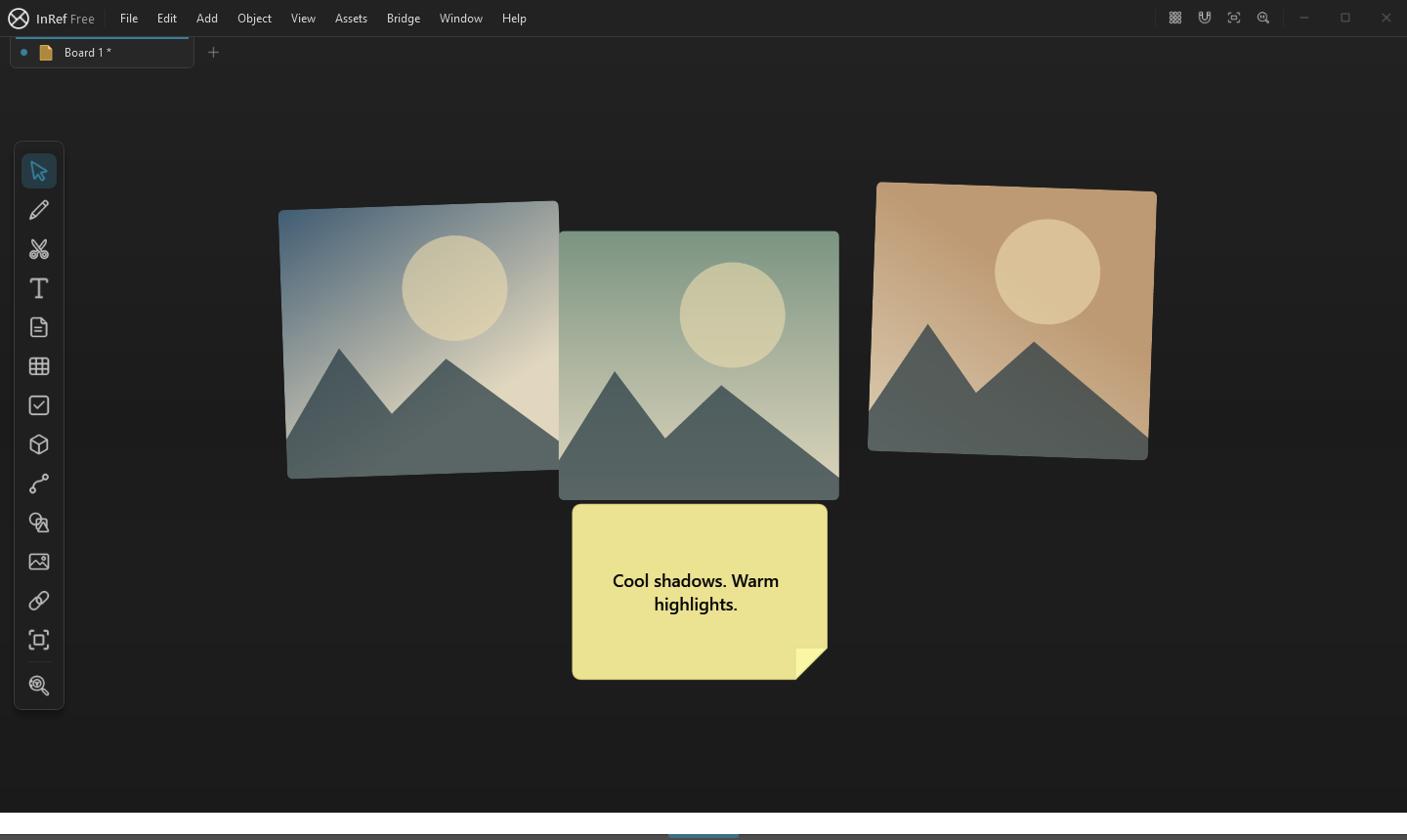
- Drag image files from Windows Explorer onto the canvas. You can also copy an image and paste it with Ctrl+V.
- Drag references into position. Use the mouse wheel to zoom and middle-mouse drag to pan. Hold Space and drag with the left mouse button if you prefer.
- Press Ctrl+A to select the board’s objects, then Ctrl+Shift+A to arrange them. Press F to frame the selection.
- Choose Add > Note to place a note beside your references, then enter the information you want to keep with them.
- Choose File > Save or press Ctrl+S. Choose a name and location for the .inref board file.
Continue where you left off
Open the .inref file with File > Open or Ctrl+O. Once a board has been saved, Ctrl+S updates that file. Use File > Save As when you want to keep a separate version.
- Use board tabs to keep different ideas separate.
- Group related objects with Ctrl+G, then use the Outliner to find them again.
- Tap Space or press F3 to search for a command when you do not know where it lives.